dlrSecured List Import Window
The dlrSecured List Import window is used to import a .csv file, .txt file, or .xlsx file containing the Email addresses of employees to enroll in dlrSecured Identity Management.
The file must include columns from left to right in the following order:
-
User ID
-or-
Last Name column and First Name column
-
dlrSecured Identity Email
-
Link Status
Note - When Active is entered in the Link Status column, the employee is enrolled in dlrSecured.

|
To access the dlrSecured List Import window, click the IMPORT button on the Search Criteria panel on the dlrSecured Mass Enrollment screen. |
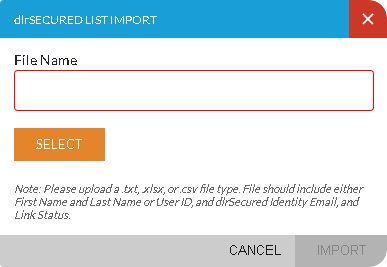
To import a file, click the SELECT button. The Open window displays, where a file can be selected from the PC or network drive. After selecting a file, the file name displays in the File Name field. Click the IMPORT button to display the Import panel, where employees can be enrolled in dlrSecured.
For more information about importing a file to enroll employees in dlrSecured, refer to How to Import Email Addresses to Enroll Employees in dlrSecured Identity Management.
Click here for a list of products that may be mentioned in this help file.